
Linear integration
Works with Linear
Connect ReplyRabbit to Linear so support conversations in FreeScout can become structured engineering issues. Agents can create a Linear issue from a conversation, keep the linked issue visible in FreeScout, and use ReplyRabbit to prepare the handoff.
Looking for the overview?
Overview
The Linear integration adds a Linear panel to ReplyRabbit in a FreeScout conversation. When Linear is configured, ReplyRabbit can create an issue with a developer-friendly title, a tidy summary, priority, status, project context, and a link back to the support conversation.
Manual Linear issue creation is available on Pro and Team. Automatic Linear issue creation from new customer emails is available on Team.
Prerequisites
Before you start, make sure you have:
- A working FreeScout installation.
- ReplyRabbit installed and activated.
- A ReplyRabbit plan that includes the Linear feature you want to use.
- Access to a Linear workspace where you can create an API key.
- At least one Linear team where support issues should be created.
If ReplyRabbit is not installed yet, start with How to install the ReplyRabbit module, then finish How to set up ReplyRabbit.
Permissions and API keys
ReplyRabbit uses your Linear API key to load teams, workflow states, projects, labels, and team members, then create and update issues. Create the key in Linear from your account security or API settings, then paste it into the ReplyRabbit mailbox settings.
Keep the key private. If the key is rotated or removed in Linear, update the mailbox settings before creating more issues.
Connect Linear
Open the mailbox settings
In FreeScout, open the mailbox that should create Linear issues, then open Settings and choose ReplyRabbit.Find the Linear settings
In the ReplyRabbit settings screen, go to the Integrations section and enable Linear.Paste the API key
Paste your Linear API Key. If you already saved a key, ReplyRabbit shows a masked preview instead of the full secret.Load teams
Click the button to load teams from Linear, then choose the team where new issues should be created.Save settings
Save the mailbox settings. ReplyRabbit stores the Linear connection for that mailbox.
Configure defaults
After the Linear team is selected, configure the defaults your agents should start from:
- Default state: choose the initial workflow state for new Linear issues, such as Triage or Backlog.
- Auto-submit issues: on the Team tier, let ReplyRabbit automatically create Linear issues when the triage result says engineering work is needed.
- Project routing: enable automatic project selection when you want ReplyRabbit to match conversations to Linear projects.
- Domain mappings: map customer email domains to specific Linear projects when you need deterministic routing.
- Ticket template: use a Markdown template when your team wants a consistent Linear issue body.
Project routing is optional. If no project is confidently matched, ReplyRabbit can still create the issue without a project.
Create a Linear issue from a FreeScout conversation
Open a conversation in a mailbox where Linear is configured. The ReplyRabbit panel can create a Linear issue from the customer thread, then show the linked issue in FreeScout.
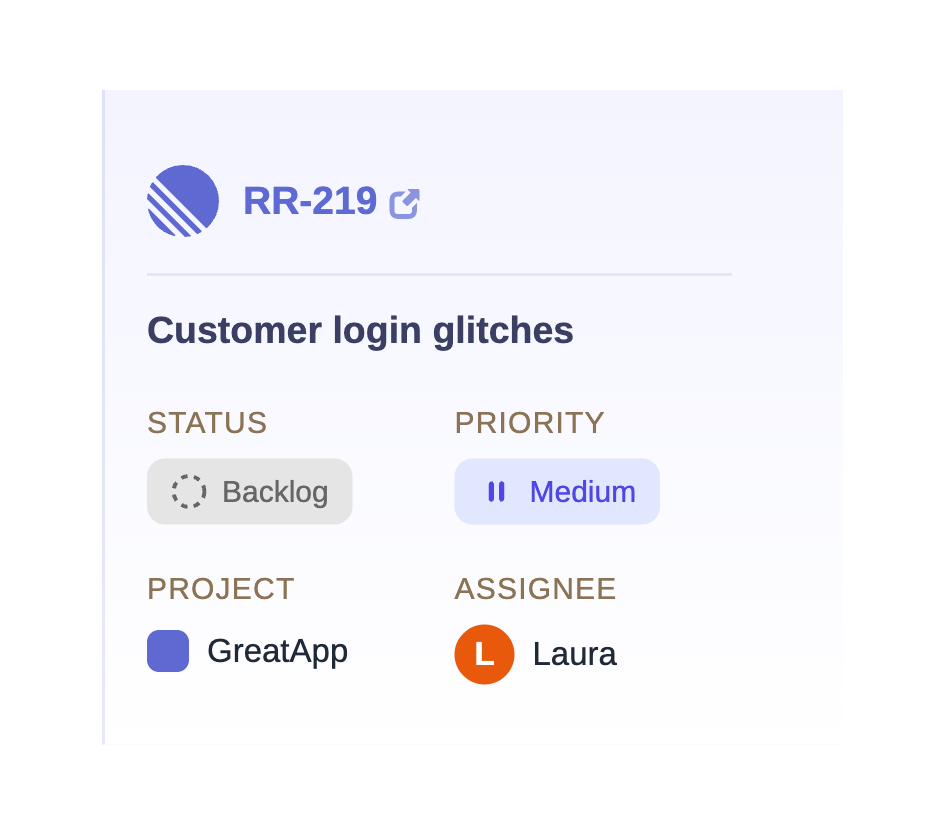
The issue content is generated for an engineering handoff, not copied blindly from the whole email thread. Review the title, summary, priority, and project before creating the issue when manual creation is used.
Keep conversations and issues in sync
Once an issue is linked, the FreeScout conversation can show the current Linear status, assignee, project, and issue identifier. Agents can open the issue in Linear when they need the full engineering view.
ReplyRabbit also supports a completion loop: when engineering marks the Linear issue as done, ReplyRabbit can help draft the customer follow-up so support can close the conversation with context.
Troubleshooting
| Symptom | What to check |
|---|---|
| Teams will not load | Confirm the Linear API key is current and belongs to the expected workspace. |
| Issues are not created | Confirm Linear is enabled, a team is selected, and your ReplyRabbit plan includes the feature. |
| Automatic issues are not created | Confirm you are on the Team tier and Auto-submit issues is enabled. |
| Project is missing | Confirm project routing or domain mappings are configured. ReplyRabbit may skip the project if there is no confident match. |
| Status or assignee will not update | Reload the conversation, then confirm the Linear key still has access to the linked issue. |
For broader fixes, see Troubleshooting ReplyRabbit.
Privacy and data handling
ReplyRabbit sends Linear the issue content needed for the engineering handoff. That can include relevant customer context, the generated issue title, the generated summary, project or priority fields, and the FreeScout conversation link or identifier.
Do not put sensitive information into a Linear issue unless your Linear workspace is allowed to receive it. If customer data must stay entirely on your own server, keep Linear disabled for that mailbox.
FAQ
Do I need a Linear API key?
Yes. ReplyRabbit connects to Linear with an API key from your own Linear account.
Can I choose the Linear team?
Yes. Load teams from Linear in the mailbox settings, then choose the team where ReplyRabbit should create issues.
Can ReplyRabbit set the project?
Yes, when project routing is configured. ReplyRabbit supports domain-based project mappings and AI project matching for available Linear projects.
Which plan includes Linear?
Manual Linear issue creation is a Pro feature. Automatic Linear issue creation is a Team feature.
Does ReplyRabbit send the whole customer conversation to Linear?
ReplyRabbit sends the issue content needed for the engineering handoff, including relevant customer context and the generated summary.