
Use different AI models for drafts, previews, and attachments
ReplyRabbit lets you choose an AI provider, a model, and an API key for each task it runs, rather than one model for everything. Keep your best model on draft replies, and point high-volume background work, such as mailbox preview summaries, at a faster or cheaper model, or at a different provider entirely. You set all of this in one place: the AI Provider section of your mailbox settings.
The four task subsections
Open the mailbox in FreeScout, choose Settings, then ReplyRabbit, and scroll to AI Provider. The section has four subsections, and each one picks its own provider, model, and optional API key.
| Task | What it powers | Default behavior |
|---|---|---|
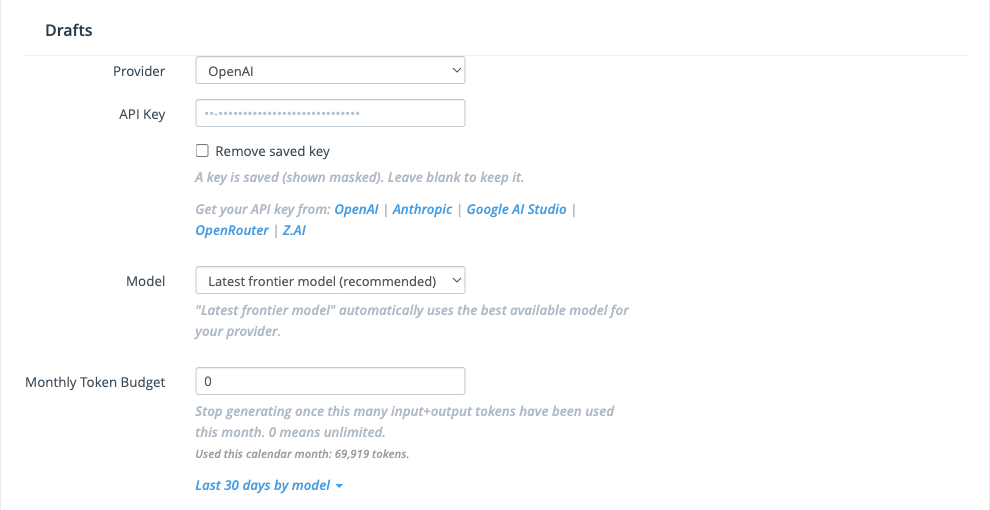
| Drafts | AI draft replies, next actions, and AI Signals | The main provider and model you chose when you set up ReplyRabbit |
| Embeddings | Semantic retrieval over your knowledge base, docs, and products | Inherits from the draft provider |
| Mailbox previews | AI summaries shown in mailbox conversation lists (Team plan) | Inherits from the draft provider, with a cheap recommended model |
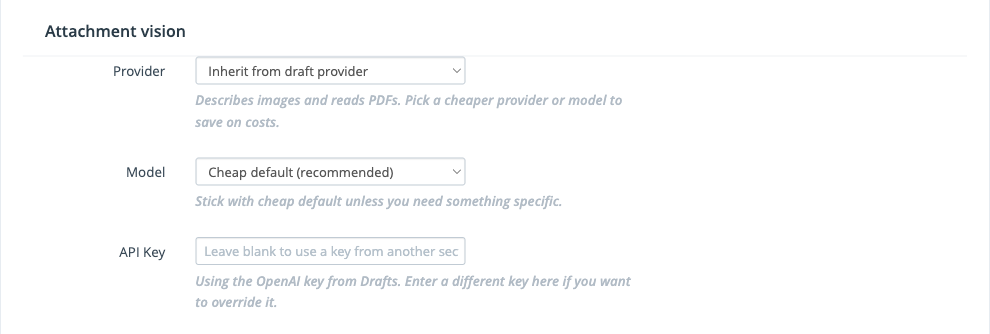
| Attachment vision | Reading images and PDFs attached to conversations (Team plan) | Inherits from the draft provider, with a cheap recommended model |
Drafts also keeps the Monthly Token Budget field, because the budget covers every AI call the mailbox makes.
Point previews and vision at a cheaper model
Mailbox previews and attachment vision run far more often than drafts, so they are the tasks where a cheaper model pays off fastest. Both are Team plan features, and both work the same way:
Open the AI Provider section
In FreeScout, open the mailbox, choose Settings, then ReplyRabbit, and find AI Provider.Pick a provider for the task
In the Mailbox previews or Attachment vision subsection, the provider defaults to Inherit from draft provider. Leave it to stay with your draft provider, or pick any other provider from the list.Pick a model
The model defaults to Cheap default (recommended), a low-cost model suited to summaries and image reading. Choose a specific model from the catalog, or enter a custom model name, if you want something else.Save
Click Save. Preview summaries regenerate in the background after a provider or model change, so the mailbox list catches up on its own.
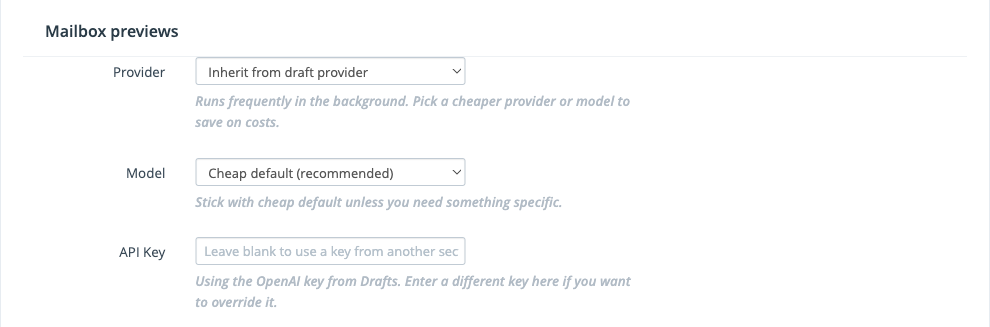
Whatever you pick here never changes what writes your draft replies. Drafts keep using the provider and model in the Drafts subsection.
How API key sharing works
You do not need to paste the same key into every subsection. Leave a task's API key field blank and ReplyRabbit reuses a key you already saved in another section, as long as both sections resolve to the same provider.
The blank field tells you what it will do:
- If a matching key exists, the field shows which section the key comes from, for example that previews are using the OpenAI key from Drafts. Enter a key in the field only when you want that task to use a different key.
- If no saved key matches the task's provider, the field warns you that no key exists for that provider yet, so you can add one before the task needs it.
Entering a key in a task's own field always overrides sharing for that task.
Removing a key that other tasks share
If you remove a key that other sections were borrowing, ReplyRabbit warns you when you save. The warning names the affected sections, for example Mailbox previews or Attachment vision, so you know which tasks lost their key. The save still goes through.
Tasks without a key pause quietly
Where the embedding settings went
Embedding Provider, Embedding Model, and Embedding API Key used to live in the Semantic Retrieval section. They now live in the Embeddings subsection of AI Provider, so every model choice sits in one section. The fields behave exactly as before, including the fallback to keyword search when your draft provider does not offer embeddings.
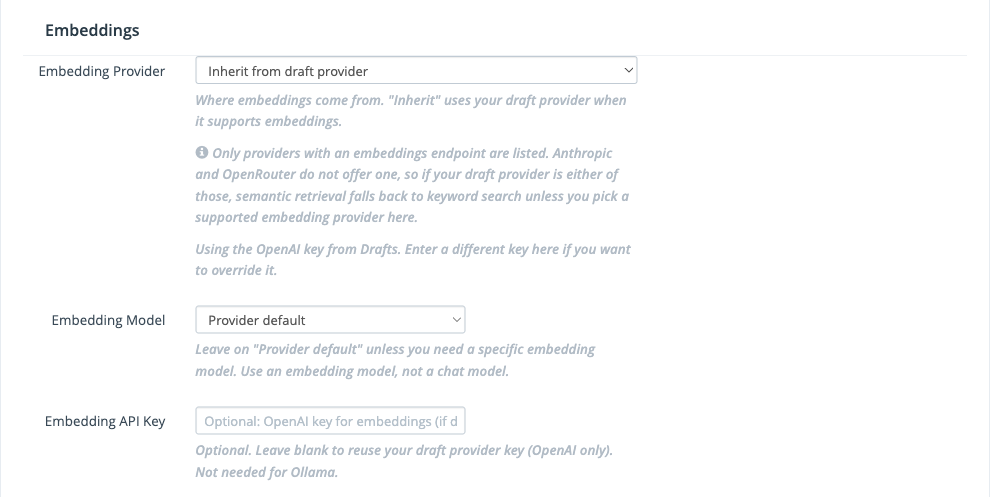
Existing mailboxes keep their saved values. If you never changed the embedding settings, nothing about retrieval changes.
Next